
The booking site is the public page your customers book and pay from. You build it in Sales → Booking site, and it needs no code: availability, prices and payment all come from Boris in real time.
The editor has five steps down the left-hand column. You can jump between them in any order, and what you type is saved for you.
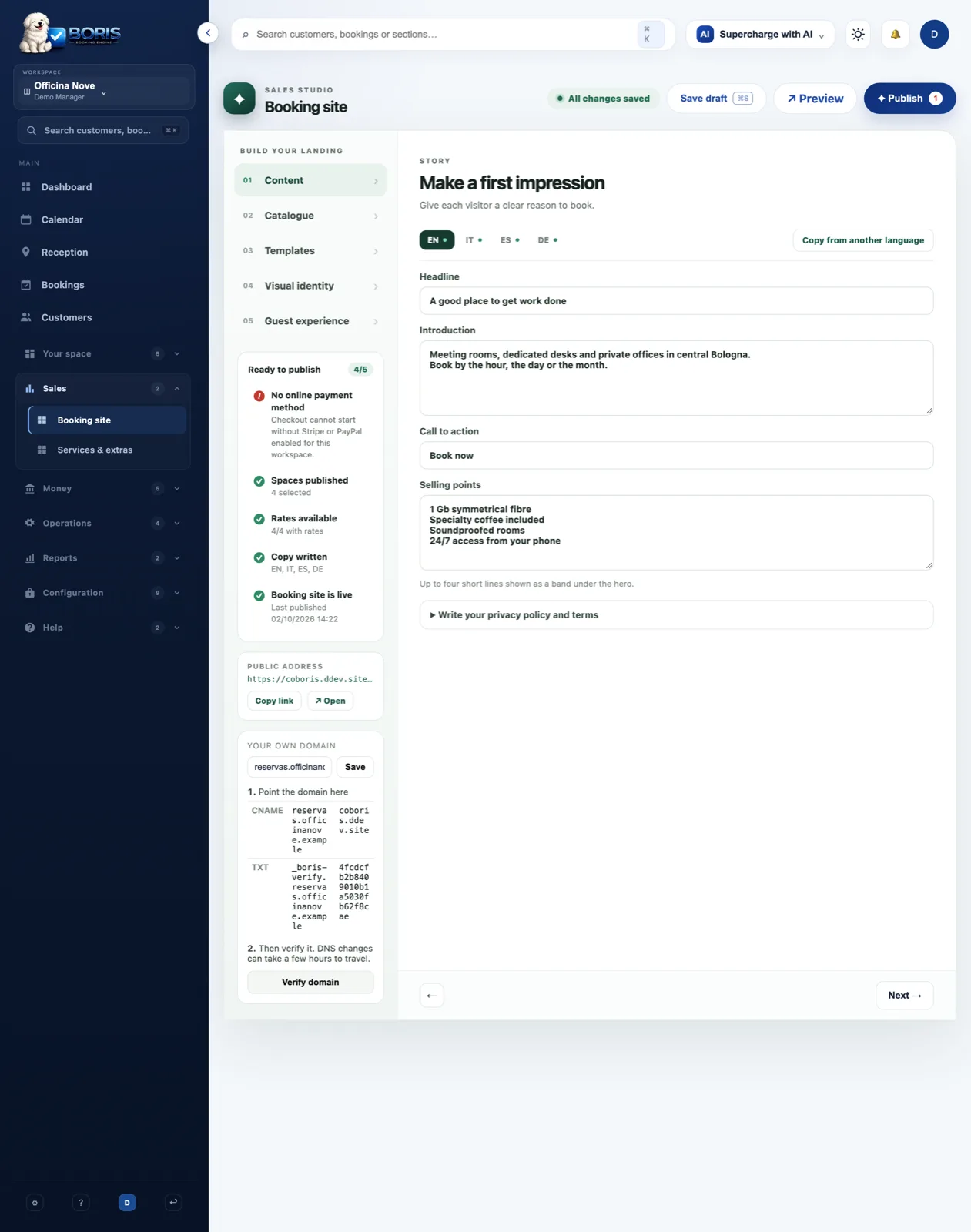
01 · Content
What the visitor reads before deciding.
- Headline: the big line. Leave it empty and the space's name is used, which rarely sells anything.
- Introduction: two or three lines. Line breaks are kept.
- Call to action: the text on the booking buttons. "Book now" beats "Submit".
- Selling points: up to four short lines, one per line, shown as a band under the hero.
Above the form there is one tab per language. Only the languages you write are published: leave German empty and the site does not offer it, neither in the language switcher nor to search engines. That is a decision, not a gap — you will not be nagged about it.
02 · Catalogue
Which spaces can be booked online. Only the ones you tick appear, and only while they are active.
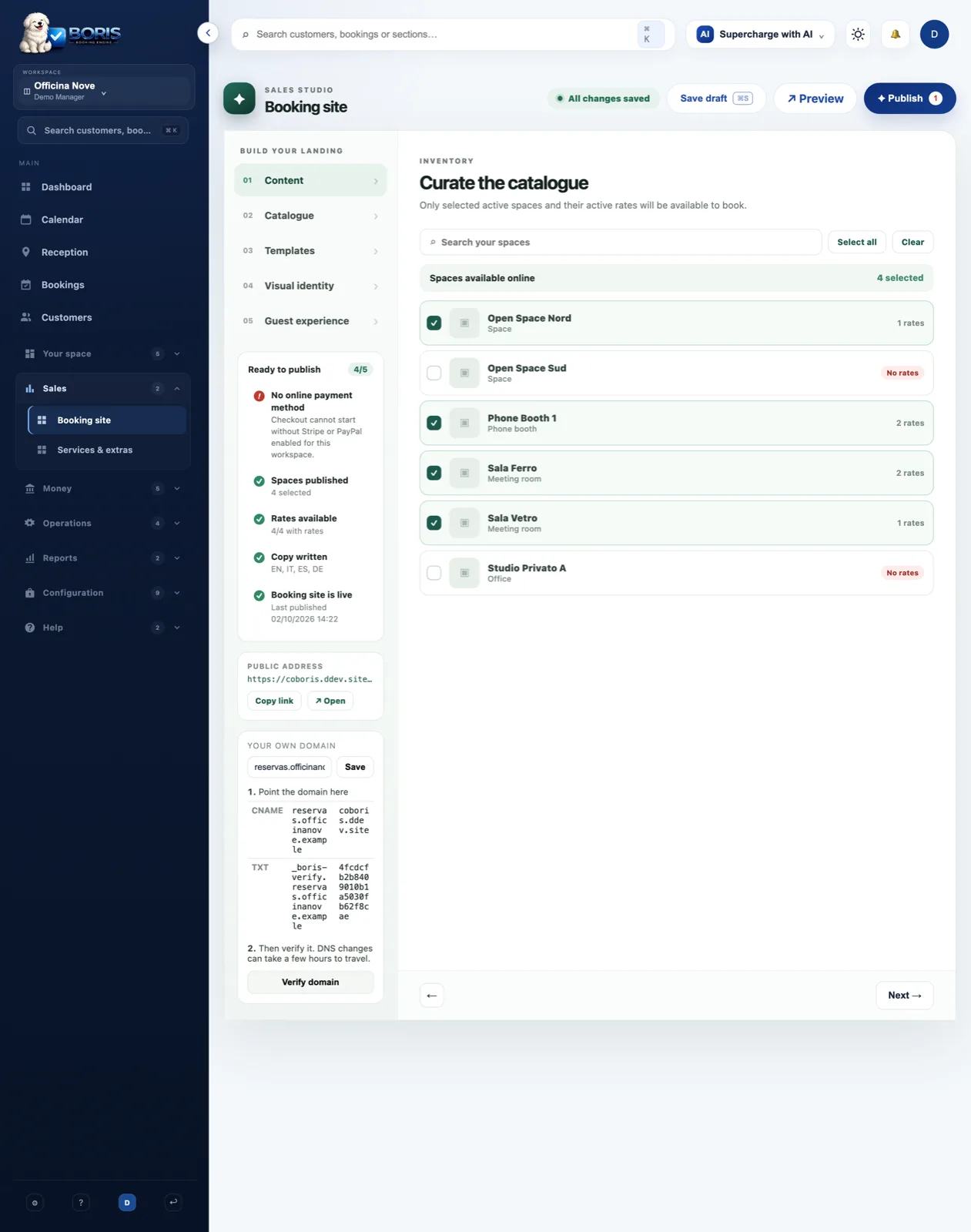
Watch for the "No rates" flag. A space without an active rate is published all the same, but nobody can book it: the card says there are no rates yet. Map one from Memberships or from the space itself.
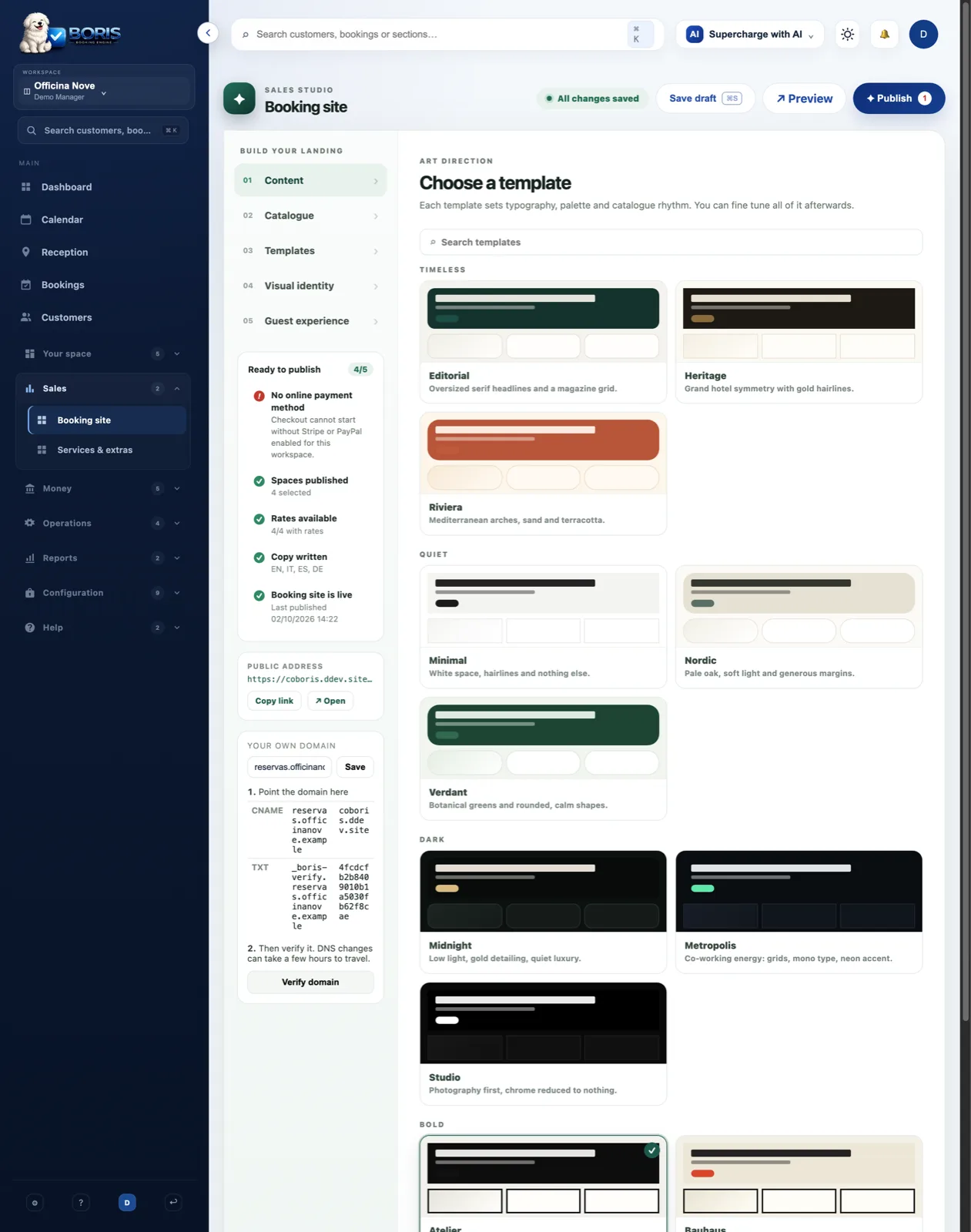
03 · Templates
Each template sets the typography, the palette and the rhythm of the catalogue. Pick one, then fine-tune whatever you like.
04 · Visual identity
Accent colour, hero style, catalogue layout and corners. Boris works out on its own whether button text should be white or dark on your colour, so you do not have to think about it.
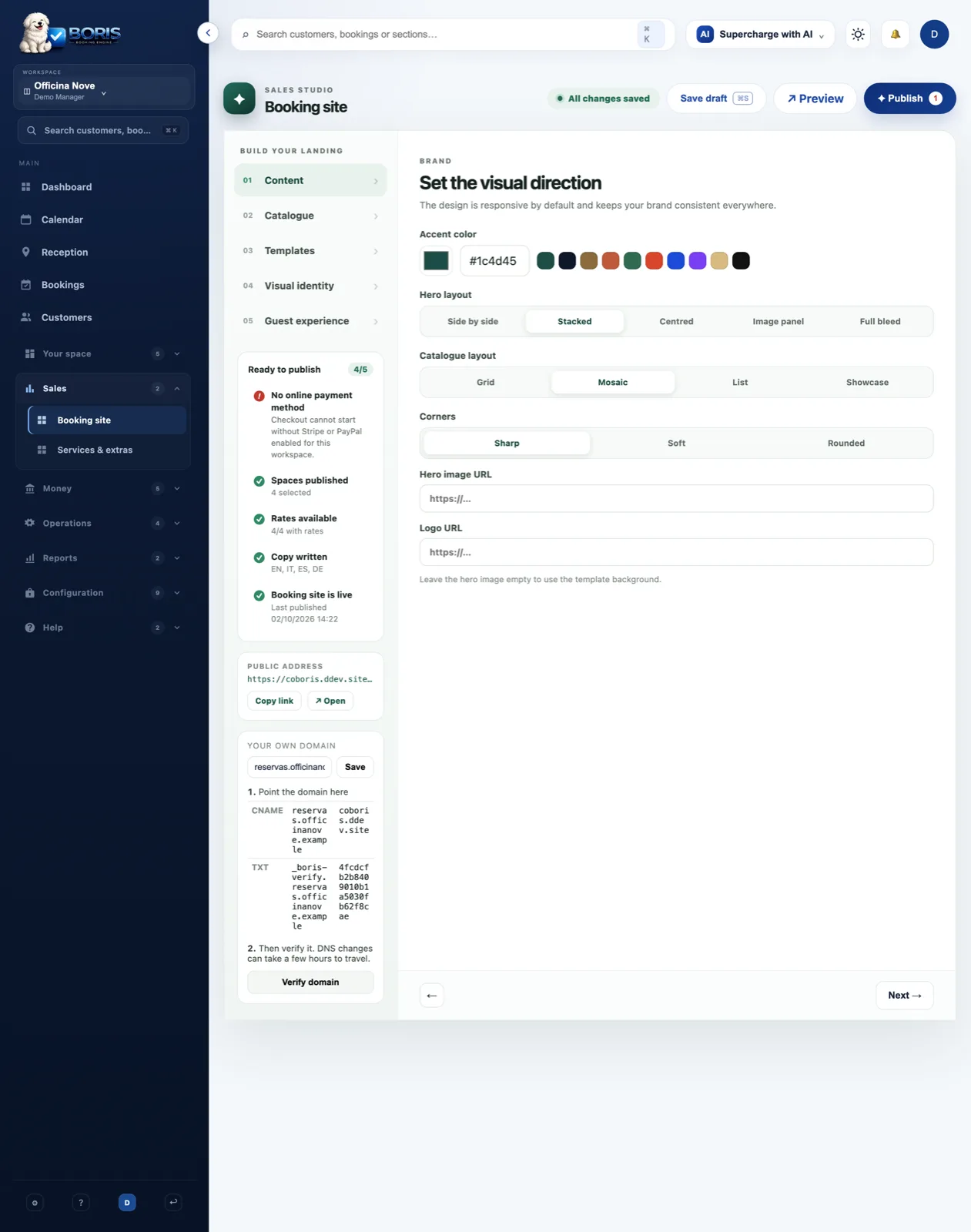
The hero image and the logo are given as URLs. The logo doubles as the site's tab icon: with no logo the page declares none — we would rather that than brand your site with ours.
05 · Guest experience
What each card shows (descriptions, capacity, "from" price, galleries), the good-to-know section and the frequent questions. Contact details, legal links and analytics live here too, and have an article of their own.
Saving is not publishing
The editor saves a draft while you work. What the public sees does not change until you press Publish. The top right tells you when there are unpublished changes.
The "Ready to publish" panel checks what would stop a booking from completing: spaces published, rates available, payment method configured, copy written. A red item blocks for real — with no payment provider, checkout cannot even start.
Preview
The right-hand column is the real page inside an iframe, not a mock-up: it updates as you type. The ↗ button opens it in its own tab, showing your draft, without publishing anything.